Creating free AI videos has never been easier. Whether you're a marketer, educator, business owner, or content creator, AI video tools can help you turn ideas into compelling content in minutes, without cameras, editing skills or a production budget.
At Saigon Digital, we spend a lot of time helping brands communicate more clearly and efficiently. Free AI video tools are becoming part of that toolkit.
They give teams the ability to test ideas, build prototype content, and scale production without waste. Below, we’ll show you how to create free AI videos step-by-step and introduce the top five tools we believe you should consider.
Why Create Free AI Videos?
Free AI video generators offer several advantages:
- Cost-effective: Produce video content without hiring film crews or editors.
- Fast turnaround: Create drafts or full pieces in minutes.
- User-friendly: Most tools include templates or guided workflows.
- Scalable: Perfect for social media, ads, internal training, product explainers and more.
- Accessible: No technical or design background required.
If your business needs to publish consistently, this is an easy first step before investing in a premium plan or a full production setup.
>>> Read more: 10 Best Free AI Writing Tools (No Credit Card Required)
How to Create Free AI Videos (The Simple Workflow)
No matter the tool, the process follows the same logical steps. Here’s the straightforward workflow we use at Saigon Digital when testing concepts.
1. Start with a Clear Purpose
Before opening any tool, it’s essential to define why you’re creating the video. When your purpose is clear, every decision, from the script to the visuals, naturally aligns with your audience’s expectations. At Saigon Digital, we often see stronger results simply because teams begin with clarity rather than templates.

A clear purpose helps answer key questions:
- Who is the video for?
- What action should viewers take?
- Which problem does the video solve?
- Where will the video be shared (website, social media, internal training, ads)?
For example, if your purpose is to promote a new product feature on Instagram, your video should be short, punchy and visually engaging. However, if your purpose is onboarding new staff, the content should be slower-paced, instructional and voice-over driven.
Example purposes:
- “Explain our new booking system to existing clients.”
- “Create a 20-second teaser for our upcoming product launch.”
- “Provide quick safety instructions for warehouse staff.”
When your purpose is defined early, the rest of the workflow becomes noticeably smoother.
2. Draft a Short Script
Once you know what the video must achieve, the next step is writing a concise, simple script. Even when using AI narration or text-to-video features, a well-written script ensures your message remains accurate and on-brand.
A clear script usually follows a natural flow:
- Hook – Capture attention within the first 2–3 seconds.
- Message – Explain the value concisely.
- Action – Tell viewers what to do next.
To keep the script manageable, aim for 40–80 words for short social clips, or up to 150 words for explainer videos. Break longer scripts into sections so the AI tool can automatically create scene-by-scene visuals.
Example script (product explainer, 30 seconds):
“Introducing CleanWave, the eco-friendly detergent designed for sensitive skin. Our formula uses natural ingredients that clean effectively without harsh chemicals. Perfect for families, pets and anyone looking for a safer washing option. Try CleanWave today and switch to a cleaner, greener routine.”
For clarity, avoid overly complex sentences. Most free AI tools struggle with long paragraphs, so short lines improve timing and visuals.
3. Choose the Right AI Video Tool
With your script ready, the next step is choosing a tool that matches your goals. Each platform excels at something different, so choosing intentionally can save considerable time.
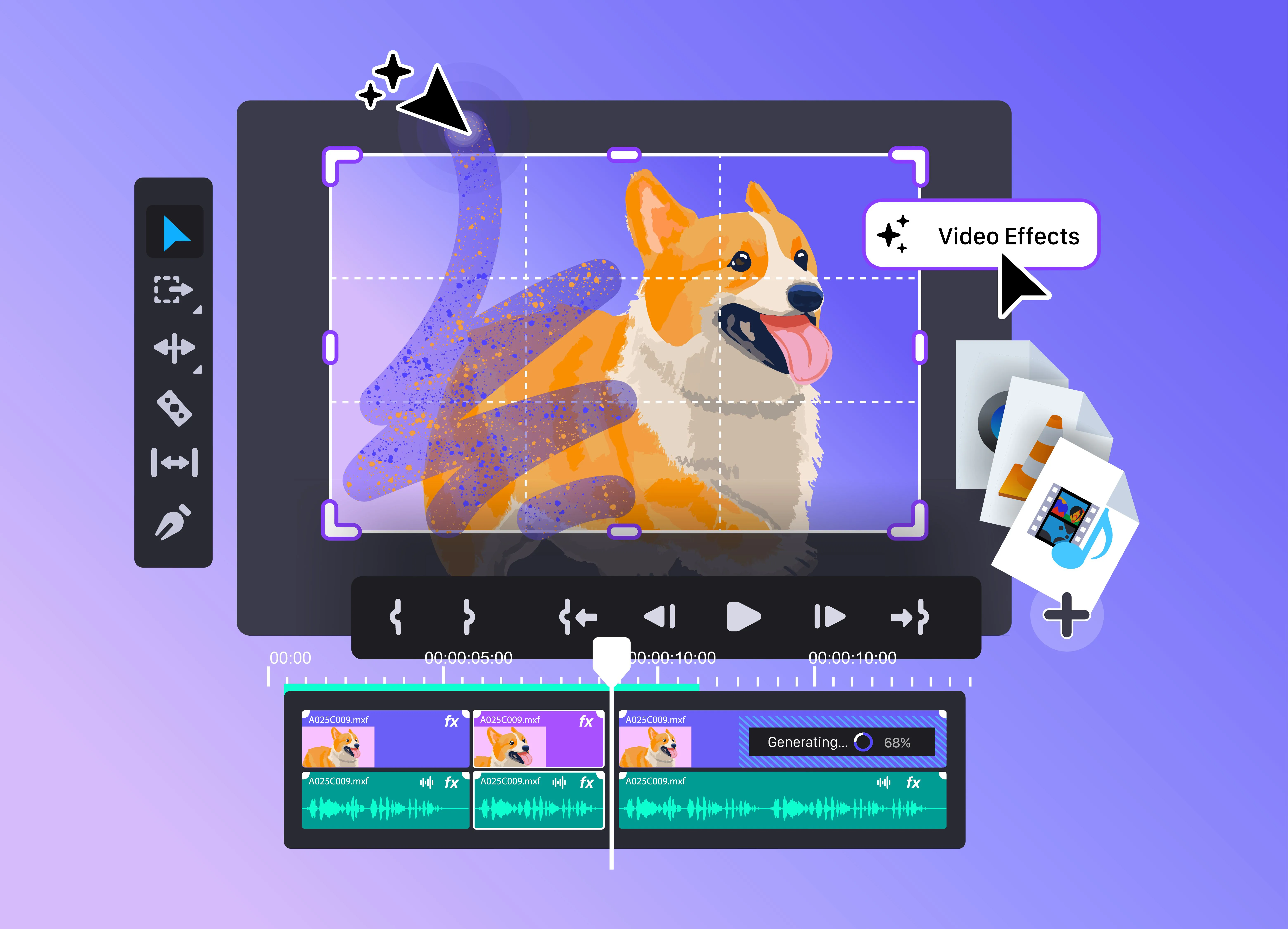
Here’s a simple guide:
- Canva: Best for branded social videos, presentations and quick templates.
- CapCut: Ideal for TikTok, Instagram Reels and influencer-style content.
- Pika Labs: Great for artistic animations and creative storytelling.
- Runway Gen-2: Perfect for cinematic scenes or transforming images into video.
- FlexClip: Efficient for business explainers, training videos and corporate content.
When deciding, consider factors such as:
- Do you need realistic voice-overs?
- Will the video use an avatar?
- Do you prefer an animated or live-action style?
- How much manual editing do you want to do?
For example, if you’re producing a polished brand introduction, Canva or FlexClip may feel more structured. But if you want an animated cityscape to introduce a tech product, Runway or Pika Labs will deliver more creative motion.
By matching your tool to your use case, you reduce friction and avoid unnecessary re-editing later.
4. Upload Your Script or Prompt
Once inside your chosen tool, you’ll usually see an option to either:
- paste your full script,
- enter a text prompt, or
- select from a template where you replace on-screen text.
Text-to-video systems generate scenes based on your input, so the more specific and descriptive you are, the better the result. For example, instead of writing: “Create a marketing video about our product.”
You might say:
“Create a 30-second marketing video introducing a minimalistic, eco-friendly water bottle. Use clean white backgrounds, smooth transitions and a soft, modern style.”
Most tools let you customise the following:
- Voice-over – Choose accent, tone, gender or pacing.
- Music – Select background tracks to match mood.
- Scene layout – Adjust positions of text and visuals.
- Pacing – Slow, medium or fast delivery.
- Aspect ratio – 16:9 for YouTube, 9:16 for TikTok, 1:1 for social feeds.
Here’s a simple workflow example using CapCut:
Click AI Video Maker.
Paste your script.
Pick a style (clean, corporate, vibrant).
Choose a voice-over.
Auto-generate subtitles.
Replace footage with your own if required.
This step usually takes less than five minutes, making it ideal for rapid content testing.
5. Make Manual Refinements
Although AI tools can build your video automatically, the best results require a few manual tweaks. This is where your brand identity becomes essential. At Saigon Digital, we always refine layout, spacing, transitions and colours to ensure every video feels intentional.
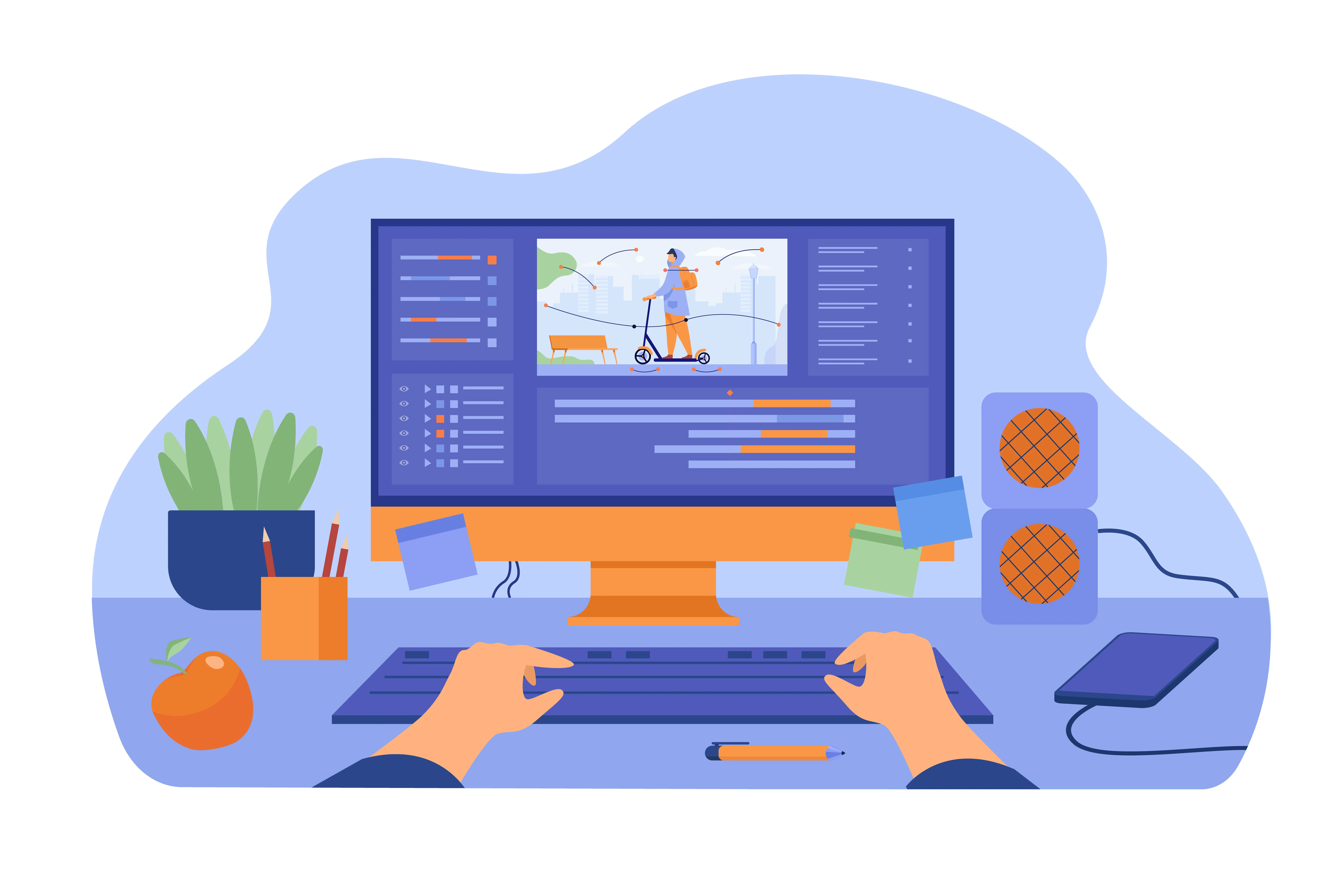
Here’s what to fine-tune:
Brand Elements
- Add your logo in a non-distracting position.
- Use brand colours consistently across text and shapes.
- Choose the correct fonts (or the closest matches available in the tool).
Scene Consistency
Ensure:
- transitions are smooth,
- pacing matches your tone,
- text size remains consistent,
- key messages stay visible long enough to be read.
Audio Adjustments
- Reduce background music volume (most AI tools set it too high).
- Make voice-over speed match your message.
- Add subtle sound effects only if they add clarity.
Visual Refinements
Replace generic AI visuals with:
- product photos,
- screenshots,
- branded imagery,
- relevant stock clips.
Example: If your script mentions “a sleek steel bottle”, replace AI-generated scenes with real product photos to build trust and avoid AI inconsistencies.
These refinements may take 10–15 minutes, but they dramatically improve professionalism.
6. Export and Test
After fine-tuning, you’re ready to export the video. Free plans may include watermarks or lower resolution, but these are perfectly acceptable for internal review or early-stage campaigns.
When exporting, consider the following:
- Resolution: Choose 1080p whenever available.
- Format: MP4 is the standard for all platforms.
- Aspect ratio: Export multiple versions if you plan to publish on different channels.
Testing your video
Before public release, test your video by:
- Sharing it with team members for quick feedback.
- Watching it with sound off (most users view social content silently).
- Checking timing, ensure text is readable.
- Reviewing on a phone screen.
Example: If you created a TikTok-style video, preview it on mobile to ensure captions are not blocked by platform UI elements.
Once you're satisfied, decide whether the free version is sufficient or whether upgrading to a paid plan unlocks extra value like watermark removal, longer video durations or better voice-over options.
Top 5 Tools to Create Free AI Videos
We tested dozens of platforms. The five below offer strong free plans, useful features and good-quality output without requiring technical skills.
1. Canva (AI Video Generator)
Canva’s AI video tools are ideal for beginners and marketers who want quick results.
Why We Recommend It
- Wide range of video templates
- Text-to-video generation
- Easy drag-and-drop timeline
- Free stock footage and music
- Ideal for social media formats
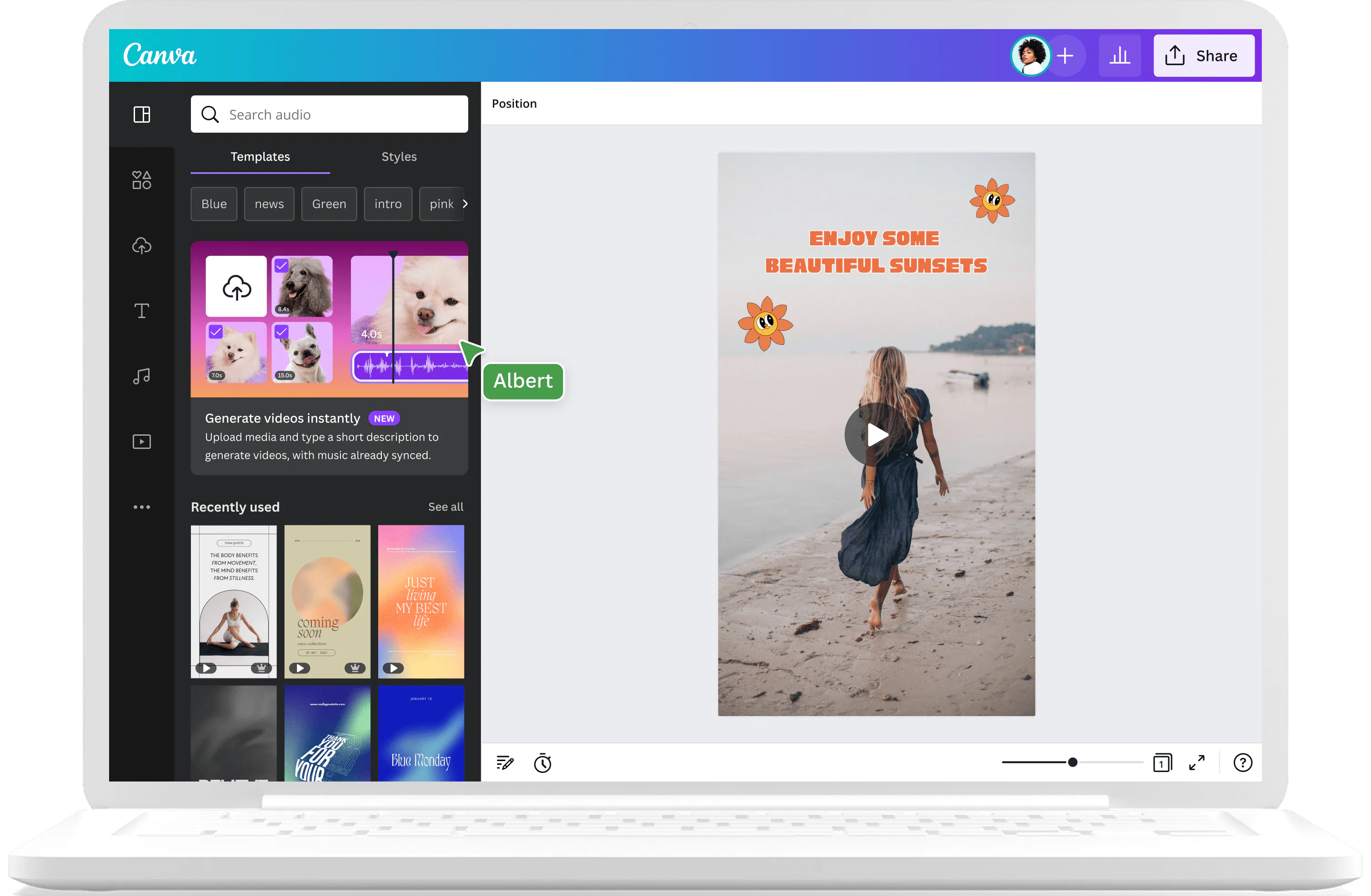
How to Create Free AI Videos in Canva
Open Canva and select Video.
Search for “AI video” or use Magic Media.
Enter your prompt or paste your script.
Choose a style (corporate, vibrant, minimalist).
Let Canva generate scenes automatically.
Edit transitions, colours, and fonts.
Export in MP4.
Example Prompt: “Create a 30-second explainer video introducing a digital marketing agency, using modern colours and clean animations.”
Canva will build scenes with text overlays and matching visuals instantly.
2. CapCut (AI Video Editor)
CapCut, by ByteDance, offers one of the strongest free video creation suites, especially for social content.
Why We Recommend It
- Free AI scriptwriter
- AI text-to-speech with natural voices
- Auto-captioning
- AI templates for TikTok, Instagram and YouTube
- Works on browser and mobile
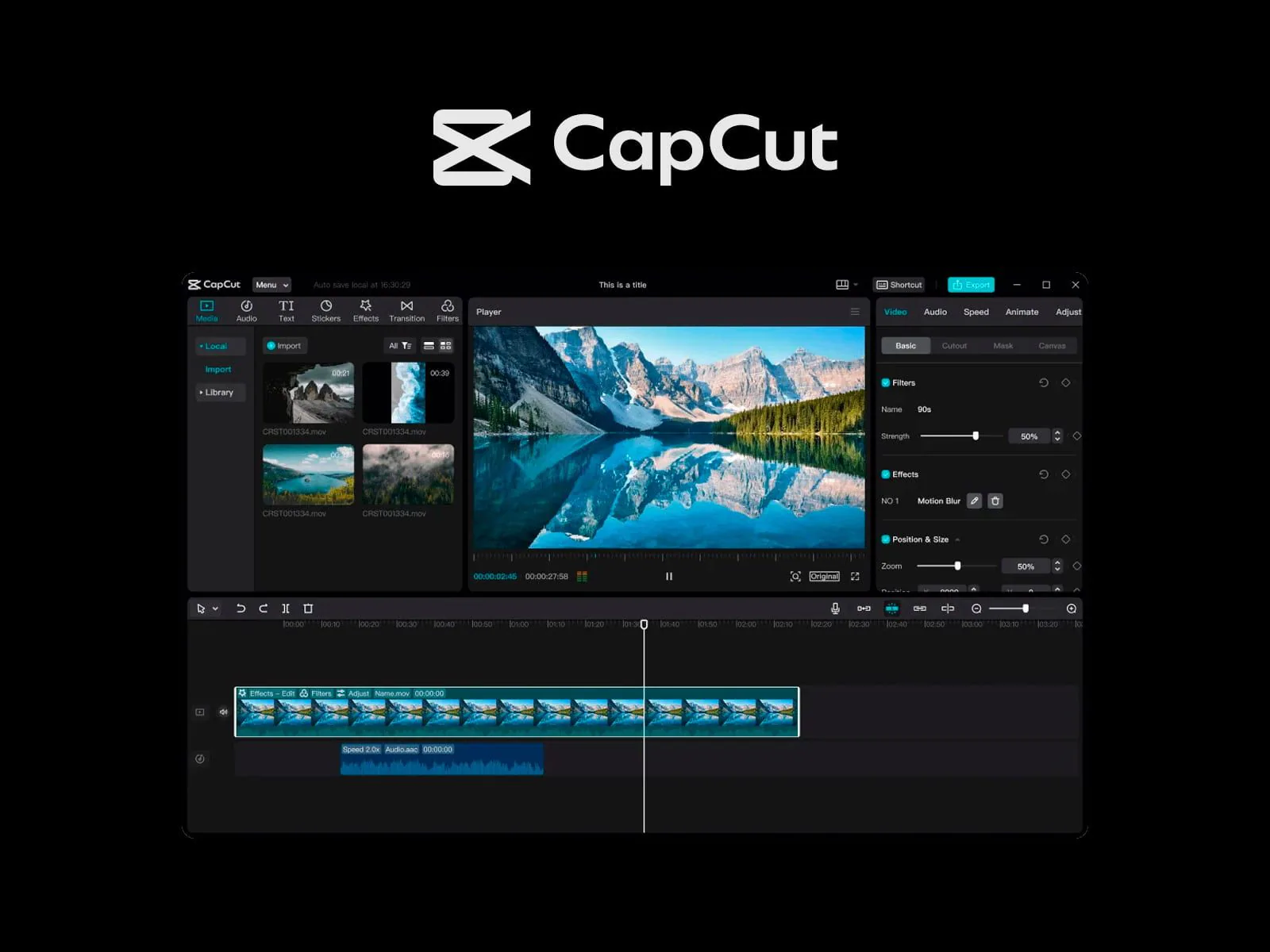
How to Create Free AI Videos in CapCut
hghghg
Open CapCut Web.
Select AI Video Generator or a template.
Enter your script or prompt.
Choose music, voice-over and visual style.
Auto-generate subtitles.
Export in HD (still free).
Example: Turn a blog post into a one-minute summary video using CapCut’s “Auto Cut” template.
3. Pika Labs
Pika Labs specialises in AI-generated animation and cinematic content. It’s great for brands wanting a more creative, stylised look.
Why We Recommend It
- High-quality AI animations
- Smooth scene transitions
- Minimal input required
- Good for storytelling and motion graphics prototypes
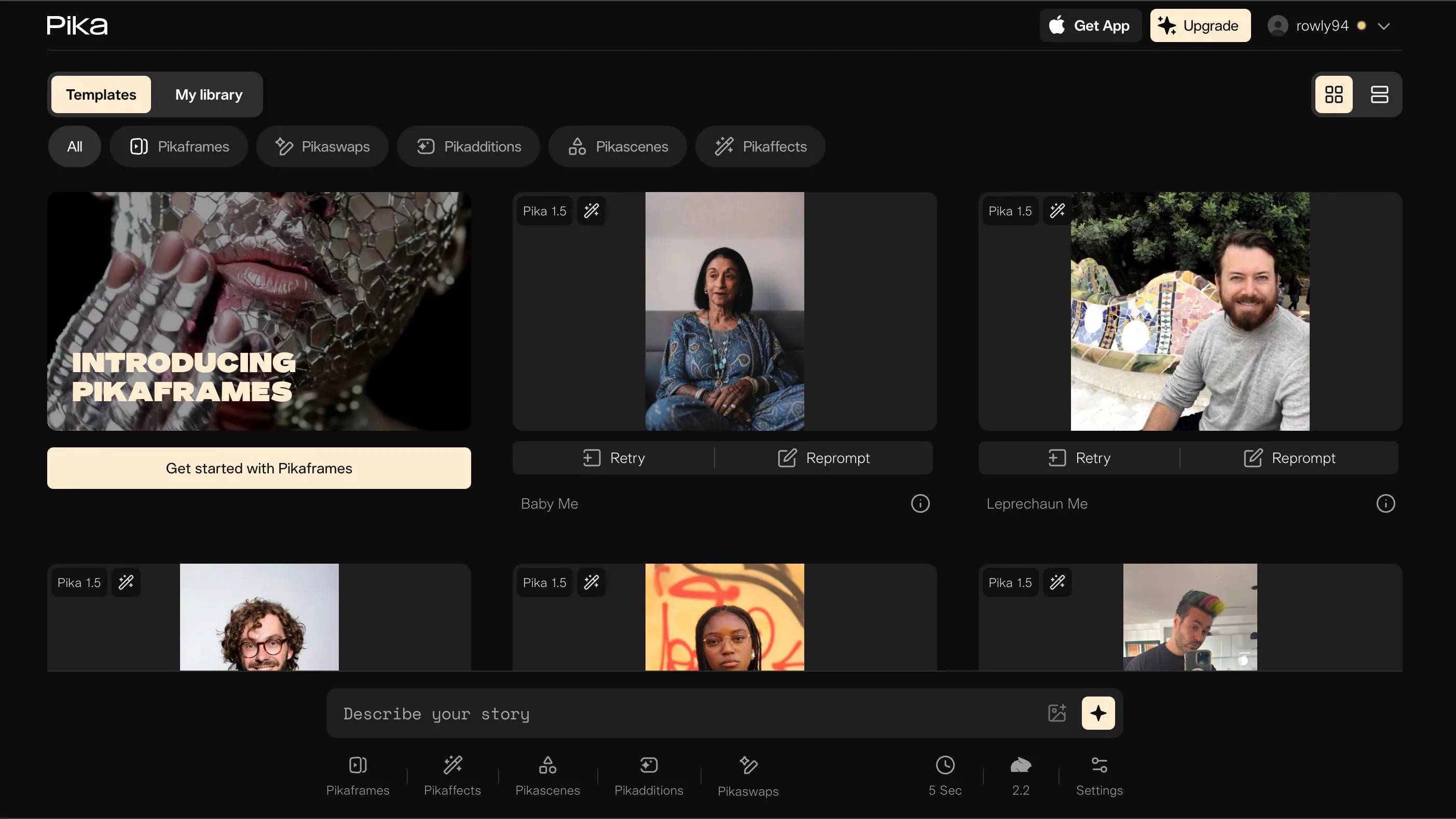
How to Create Free AI videos in Pika
Sign in to Pika.
Type your prompt: “A futuristic city time-lapse with neon lights, in a soft cinematic style.”
Pick aspect ratio and duration.
Generate and review.
Download the free version.
Example: Create animated intros for your YouTube channel without hiring a motion designer.
4. Runway Gen-2
Runway is widely used in creative studios. Even its free tier delivers impressive visuals and clever editing features.
Why We Recommend It
- Text-to-video
- Image-to-video
- Video-to-video transformation
- Advanced editing tools (green screen, motion tracking)
- Strong cinematic output
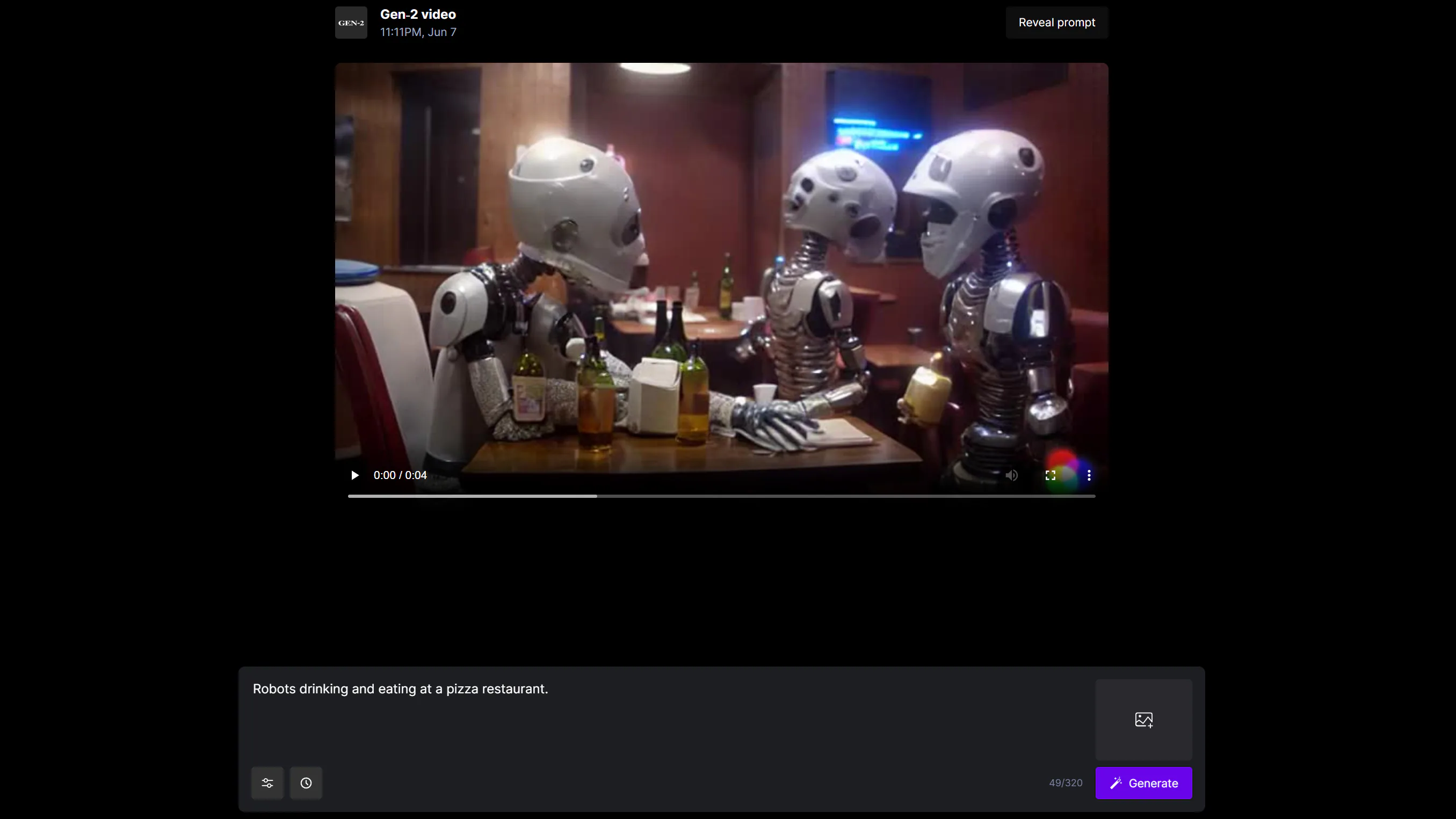
How to Create Free AI Videos in Runway
Log into Runway.
Open Gen-2 and type your prompt.
Select camera movement, style and ratio.
Generate initial scenes.
Use Runway’s editor to refine your cut.
Export your clip.
Example: Convert a static product photo into a 4-second dynamic product reveal.
5. FlexClip
FlexClip is ideal for business users who need clean, corporate-friendly video templates.
Why We Recommend It
- Text-to-video
- AI subtitle generator
- Stock footage library
- Simple editing interface
- Good for explainers and presentations
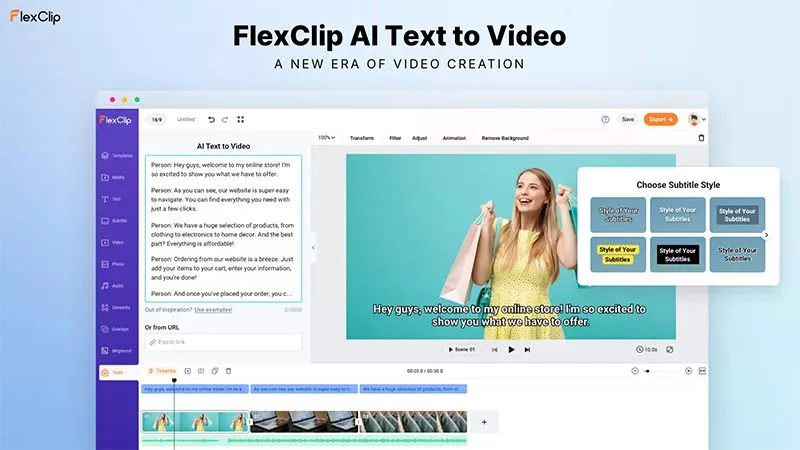
How to Create Free AI Videos in FlexClip
Go to FlexClip and choose AI Video Generator.
Enter your script.
Select a template (business, educational, social).
Let FlexClip generate your scenes.
Add brand colours and logo.
Export your video.
Example: Generate a quick internal training video for onboarding new staff.
Best Practices for Creating Quality Free AI Videos
Even with excellent tools, the overall quality of your free AI videos depends on your approach. At Saigon Digital, we’ve found that the most successful AI-driven video projects follow a handful of best practices. These practices ensure your content looks polished, delivers value and remains aligned with your brand.
Below, we break each one down with step-by-step guidance, examples and practical tips you can apply immediately.
1. Keep Your Prompts Precise
A precise prompt is the foundation of a quality AI video. Because AI tools interpret instructions literally, vague or incomplete prompts often lead to scenes that feel inconsistent or off-brand. By contrast, detailed prompts guide the tool towards your intended tone, style and pacing.

How to Make Your Prompts Clearer
Include details such as:
- Tone, professional, playful, educational, cinematic, minimalist
- Visual style, bold colours, clean layouts, pastel tones, 3D animation
- Target audience, parents, students, business owners, internal teams
- Video length, 15 seconds, 30 seconds, etc.
- Purpose, product demo, announcement, onboarding
Example of An Unclear Prompt
“Create a marketing video for our software.”
This could generate anything: animated, corporate, quirky, often missing your brand identity.
Improved, Precise Prompt
“Create a 30-second professional marketing video introducing our task-management software. Use clean layouts, cool-toned colours and smooth transitions. Show diverse business teams collaborating in an office environment, and include calm background music.”
Clear prompts reduce editing time and improve output quality instantly.
2. Use Short, Direct Sentences
AI narration and text-to-video timing work best with concise sentences. When sentences are long or complex, the tool may struggle to display text long enough for viewers to read comfortably. Moreover, short lines improve pacing, clarity and accessibility.
Tips for Creating Effective Video Lines
- Aim for 8–12 words per sentence.
- Keep one idea per line.
- Use simple language (avoid jargon unless necessary).
- Break scripts into scenes or slides.
Example
Instead of:
“Our revolutionary software solution is designed to streamline your workflow processes and increase productivity by giving you complete access to all your tools in one intuitive dashboard.”
Try:
“Our software streamlines your daily workflow. It brings all your tools into one simple dashboard. Work faster, stay organised and save time.”
Shorter lines make your video easier to follow and far more engaging.
3. Stay Consistent with Branding
Even when using free tools, maintaining brand consistency is essential for trust and recognition. A cohesive video looks professional and supports your wider content strategy. At Saigon Digital, we always recommend establishing branding rules before production, even for quick prototypes.

Elements to Keep Consistent
- Colours: match your brand palette as closely as possible
- Fonts: upload your own if the tool allows
- Logo: place it in a consistent corner
- Tone of voice: formal, friendly, authoritative, conversational
- Icon style: outline, filled, 3D, flat
- Transitions: avoid random or overly flashy effects
Practical Example
If your brand uses navy blue and orange, avoid switching to pastel greens because they “look nice in the template.” Adjust template colours to your palette instead. This small step creates a more polished and trustworthy appearance.
4. Edit Manually (Don’t Rely on AI Alone)
AI is superb at producing a draft, but it rarely delivers a perfect video by itself. Manual refinement ensures your video feels intentional rather than automated. We treat the AI output as a first draft, then polish it with human oversight.
What to Adjust Manually
- Text timing – make sure sentences stay on screen long enough
- Scene flow – combine or split scenes for better pacing
- Image relevance – replace inaccurate or generic visuals
- Audio balance – lower background music so the voice-over is clear
- Transitions – simplify for a more professional feel
- Redundant scenes – remove clips that don’t add value
Example of a Quick Manual Fix
If AI generates five scenes but two feel repetitive, delete one and extend the pacing of another. Small tweaks like this improve watchability immediately.
5. Test Variations for Different Channels
Different platforms reward different types of content. Therefore, exporting multiple versions of your video ensures it performs well wherever it appears. This step is especially important when using free tools that allow quick, unlimited drafts.
What to Vary
- Aspect ratios:
- 16:9 → YouTube, websites
- 9:16 → TikTok, Instagram Reels, Shorts
- 1:1 → Facebook feed, LinkedIn feed
- Length:
- 10–15 seconds for ads
- 20–30 seconds for social content
- 45–90 seconds for explainers
- Voice-over vs. captions: Some audiences prefer silent videos with text
- Visual style: Bright for lifestyle; minimalist for professional audiences
Example
If you're releasing a new product teaser:
- Create a 9:16 short version for Reels (fast-paced, bold text).
- Publish a 16:9 detailed version for YouTube (voice-over, slower pacing).
- Export a 1:1 version for LinkedIn with on-screen benefits.
Testing variations helps you understand what resonates best and improves future content planning.
Free AI Videos Are a Strategic Advantage
AI video tools give you the ability to experiment, test messaging and publish content faster than ever.
At Saigon Digital, we see them as a practical way to reduce production overheads while still keeping creativity high.
Start small, focus on clarity, and use AI as a complement, not a replacement, for your creative judgment.
If you’d like help choosing the right tools or creating a content workflow that integrates AI video production, we’re always happy to support.
Get in touch with Saigon Digital today!
Want to be the brand AI engines recommend?
We make businesses visible on Google and inside AI answers, measured in leads, not vanity metrics.