


At Saigon Digital, we spend a lot of time helping brands create digital experiences that scale. One challenge we see again and again is this: great visuals are expensive to produce, yet every channel demands a different size, format and layout. This is exactly where the best AI image extender tools come in.
AI image extenders, also known as AI outpainting tools or generative expand tools, intelligently add new, context-aware content beyond an image's original borders. Rather than stretching, cropping or leaving awkward white space, they generate matching background, texture and detail so the final image looks like it was always composed that way. Some platforms also describe this as uncropping, since the effect works like reversing a tight crop.
We tested and reviewed the platforms below across real marketing use cases, from e-commerce product photos to campaign hero images, so you can see how each one performs, what it costs, and where it fits into your workflow.
Below, we explore the 10 best AI image extenders to try in 2026, along with their strengths, limitations and ideal use cases.
Key Takeaways
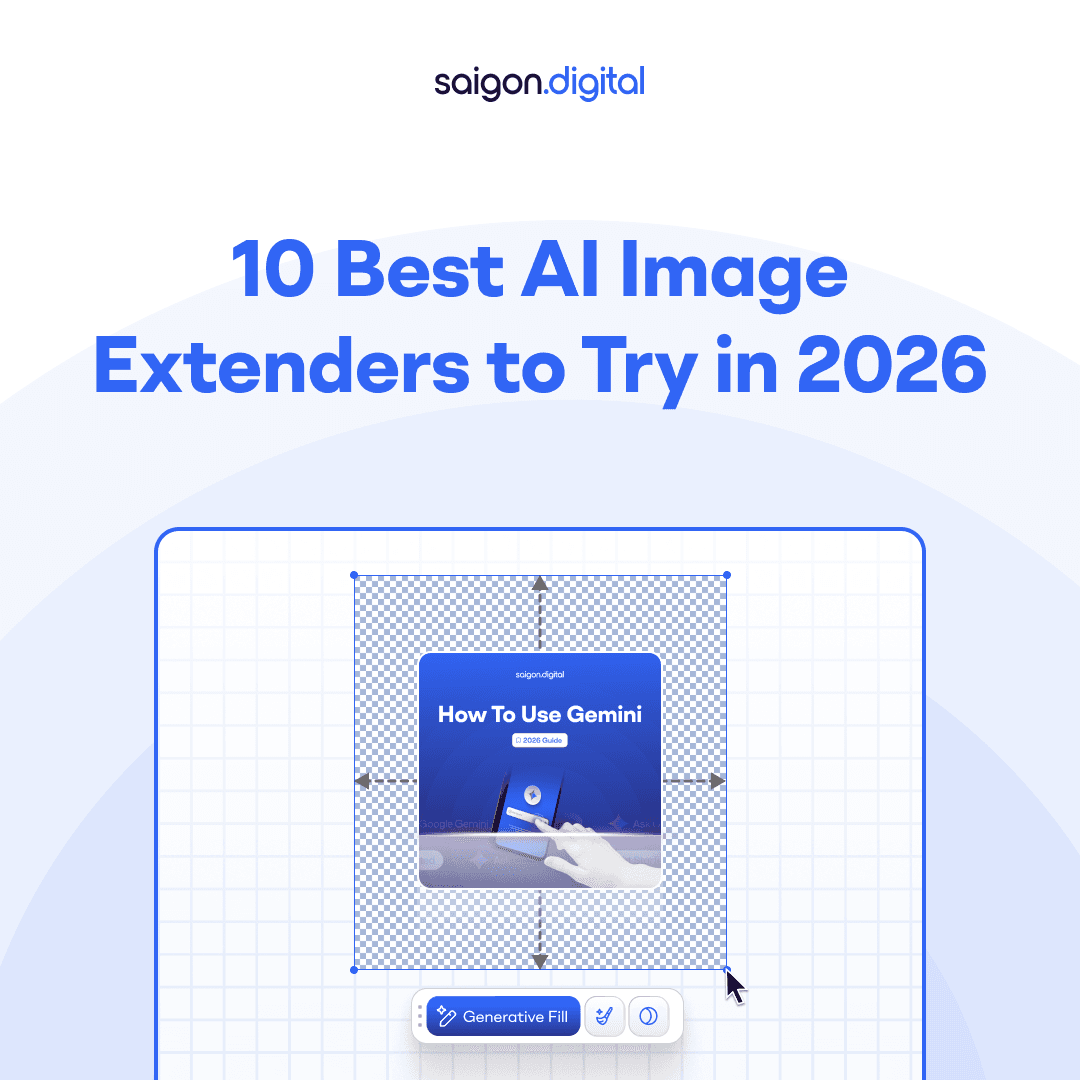
- AI image extenders, also called outpainting or generative expand tools, add realistic new content beyond an image's original borders instead of stretching or cropping it.
- Adobe's Generative Expand (inside Photoshop and Firefly) remains the strongest choice for brand-critical, professional design work, while Google's Nano Banana Pro has become one of the most capable and widely available options in 2026.
- For e-commerce and social content, purpose-built tools like Photoroom, PicsArt and Pixelcut offer faster, cheaper workflows than a full design suite.
- Pricing spans free and open source tools through to subscriptions of roughly $10 to $25 a month for most platforms, and upwards of $70 a month for full professional suites.
- AI-extended areas are predictions, not recovered pixels, so brand-critical, editorial and product images should always get a human review before publishing.
What Is an AI Image Extender? Outpainting, Generative Expand and Uncropping Explained
An AI image extender is a tool that uses generative AI to add new pixels beyond the edges of an existing image, rather than stretching, tiling or leaving blank space. You will see this same capability described under a few different names, depending on the platform:
- Outpainting is the general technical term for generating new content outside an image's original borders.
- Generative expand is Adobe's specific name for this feature inside Photoshop and Firefly.
- Uncropping is a more casual name some platforms use, since the effect reverses a tight crop.
- Generative fill is a related but different capability. It fills in or edits an area inside an image's existing borders, rather than extending them. Some tools offer both.
Whichever term a platform uses, the underlying idea is the same: the AI analyses your image's lighting, perspective, colour and texture, then predicts and generates new content that continues the scene convincingly beyond the original frame.
The 10 Best AI Image Extenders in 2026
1. Adobe Photoshop Generative Expand (Firefly)
Best for: Professional designers and marketing teams
Platform: Web, Desktop (via Adobe Creative Cloud)
Pricing: From approximately $19.99 to $22.99 a month for a Photoshop or Photography plan, or from around $69.99 a month for the full Creative Cloud Pro suite.
Adobe Firefly has quickly become a benchmark for AI-powered image expansion, especially because it sits directly inside Photoshop. This means designers can extend images as part of their normal workflow, rather than jumping between tools. Inside Photoshop, this capability is called Generative Expand, and it runs on Adobe's Firefly image model. More importantly, it does an excellent job of preserving lighting, perspective and colour, which makes the final result feel natural rather than generated.
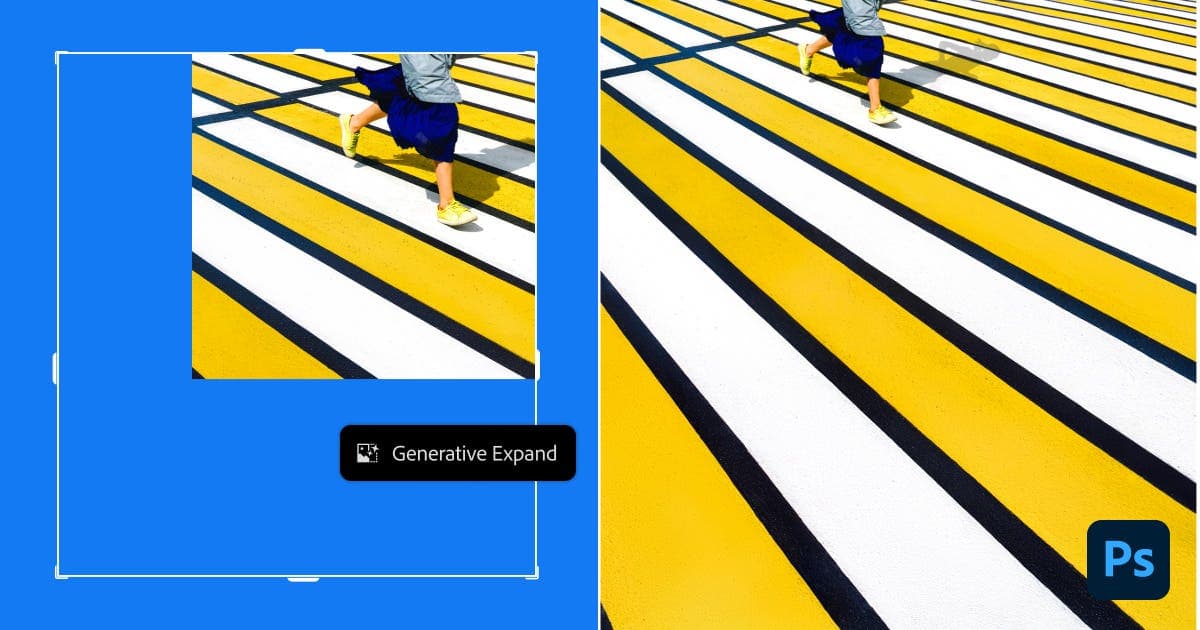
Because of this tight integration, it is particularly strong for commercial work such as campaign visuals, website hero images and large-format ads. However, it does come with the usual Adobe subscription costs, which may be a barrier for smaller teams.
Pros:
- High-quality, professional results
- Seamless integration with Photoshop
- Excellent control over edits
Cons:
- Requires an Adobe subscription
- Slight learning curve for non-designers
2. Nano Banana Pro (Google's Gemini 3 Pro Image Model)
Best for: Teams that want production-grade results from a major AI lab, with the flexibility to use it inside other platforms
Platform: Web and mobile (Gemini app), API (Google AI Studio and Vertex AI), plus third-party platforms
Pricing: Free to use in the Gemini app with limited quotas. Higher quotas are available with Google AI Plus, Pro or Ultra subscriptions, and Nano Banana Pro is also accessible through third-party platforms such as Freepik and Higgsfield.

Nano Banana Pro is Google DeepMind's advanced image generation and editing model, officially known as Gemini 3 Pro Image. It succeeded the original Nano Banana model and is built for professional-grade work, supporting prompt-based editing, inpainting and outpainting at resolutions up to 4K, with notably strong text rendering inside images.
You can extend an image simply by prompting the Gemini app to extend the image to fill a given aspect ratio, although the native app adds a visible SynthID watermark. For watermark-free, professional output, Nano Banana Pro is also accessible through third-party platforms including Freepik and Higgsfield, as well as directly through the Gemini API for teams building their own workflows.
Given the pace of development in this space, it is worth checking Google's own product pages for the latest capabilities before relying on any single source, including this one.
Pros:
- Backed by Google DeepMind, with frequent capability updates
- High-resolution output, up to 4K
- Available across many platforms, from the free Gemini app to enterprise API access
Cons:
- The free, native Gemini app experience adds a visible watermark
- Full capabilities require a paid Google AI subscription or a third-party integration
3. Photoroom AI Image Expander
Best for: E-commerce and product imagery
Platform: Web
Pricing: Free plan available. Paid plans typically start from around $10 a month.
Photoroom focuses on speed and consistency, which makes it a strong choice for online retailers. Rather than redesigning assets from scratch, teams can extend existing product photos to fit different layouts, marketplace listings, social ads or website banners, without losing focus on the product itself.
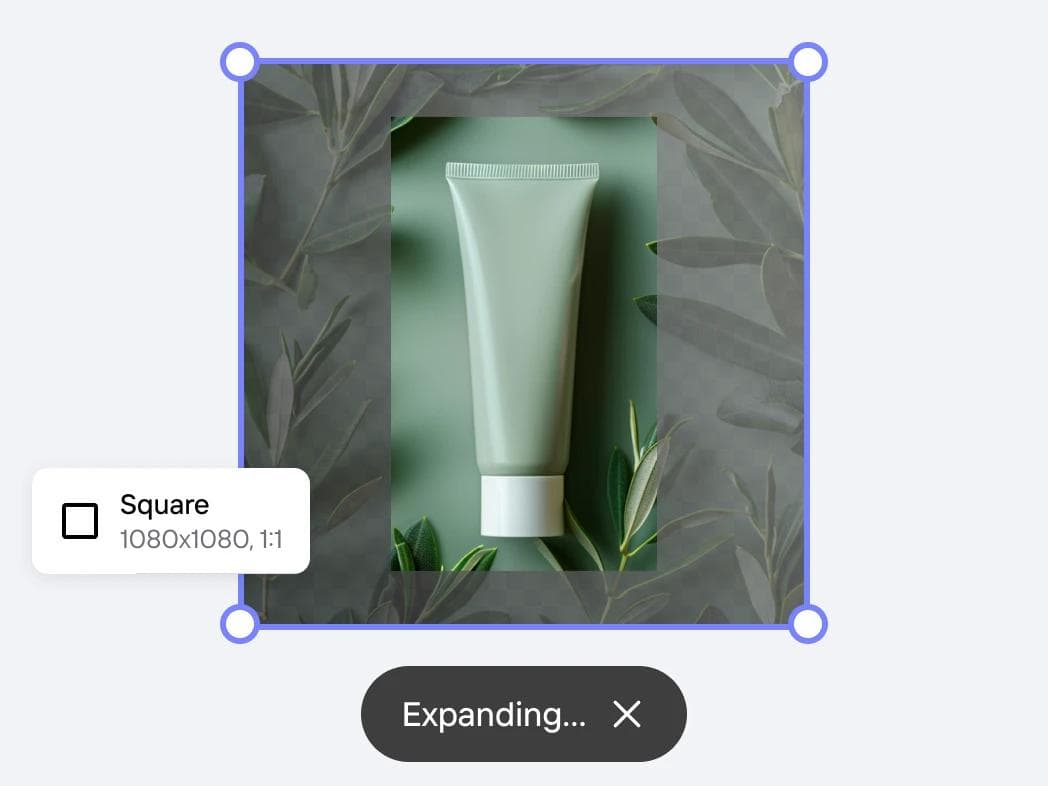
In practice, this means you can take one clean product shot and quickly generate multiple formats. While it does not offer the deep creative control of Adobe, it makes up for that with simplicity and efficiency.
Pros:
- Fast, streamlined workflow
- Excellent for product and catalogue images
- Minimal design skills required
Cons:
- Less creative control
- Not aimed at complex, artistic compositions
4. PicsArt AI Image Extender
Best for: Social media and marketing content
Platform: Web, iOS, Android
Pricing: Free plan available with limited weekly credits. Paid plans typically start from around $10 to $15 a month.
PicsArt has long been popular with content creators, and its AI image extender fits neatly into that ecosystem. The tool automatically analyses the scene and fills in new areas in a way that feels consistent with the original image. As a result, it is ideal for resizing visuals for different social platforms without awkward cropping.
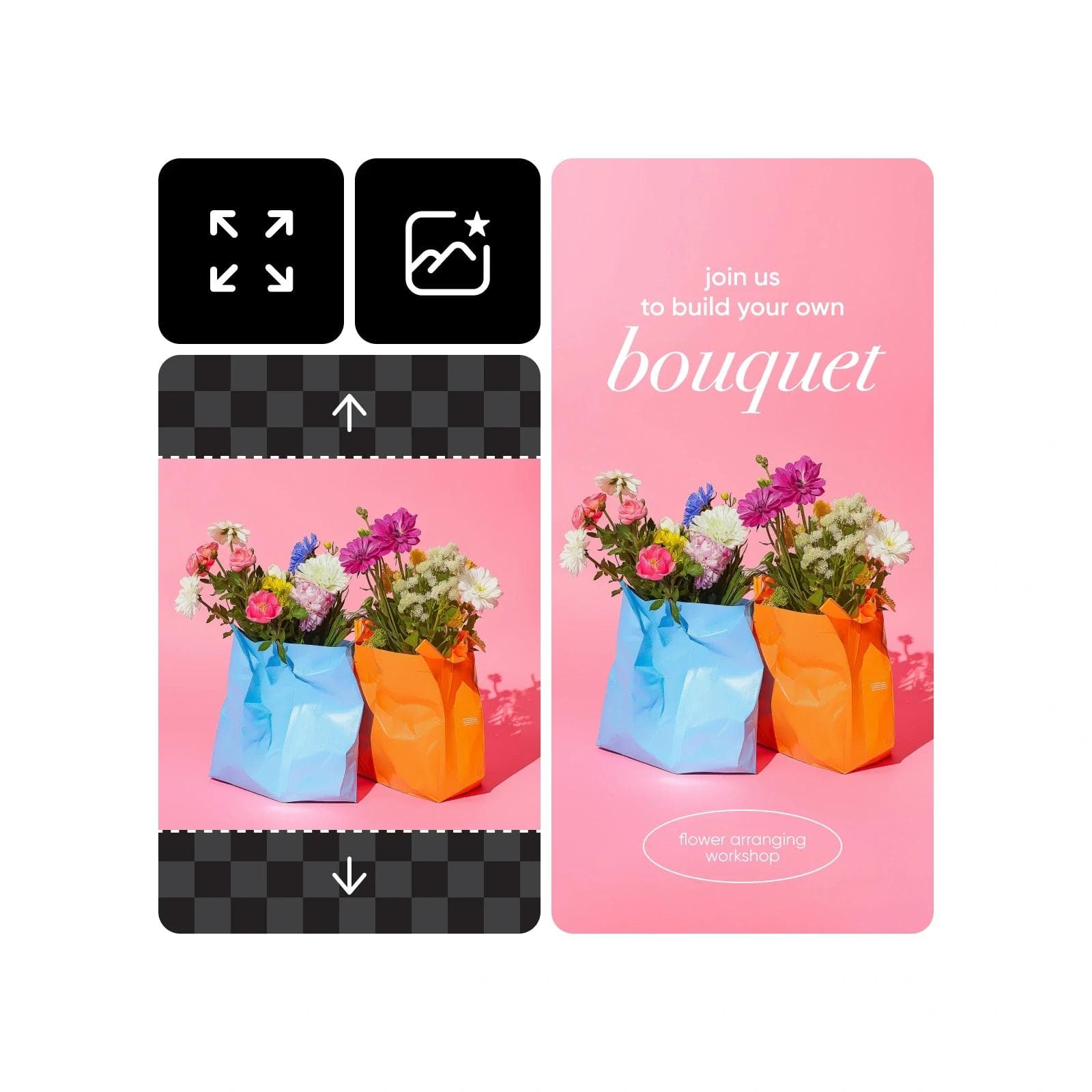
Because it is built for speed and ease of use, PicsArt is great for marketing teams that need to produce high volumes of content. On the downside, it is not designed for precision retouching or complex design work.
Pros:
- Very easy to use
- Excellent for social media formats
- Available on mobile and web
Cons:
- Limited advanced controls
- Less suitable for high-end design work
5. Canva Magic Expand
Best for: Quick marketing assets and presentations
Platform: Web, desktop, mobile
Pricing: Requires Canva Pro, which typically costs around $15 a month or $120 a year, with a free trial available.
Canva's Magic Expand makes AI image extension accessible to almost anyone. If you already use Canva for social posts, presentations or ads, this feature feels like a natural extension of your workflow. You simply select a new size, and Canva fills in the extra space for you.
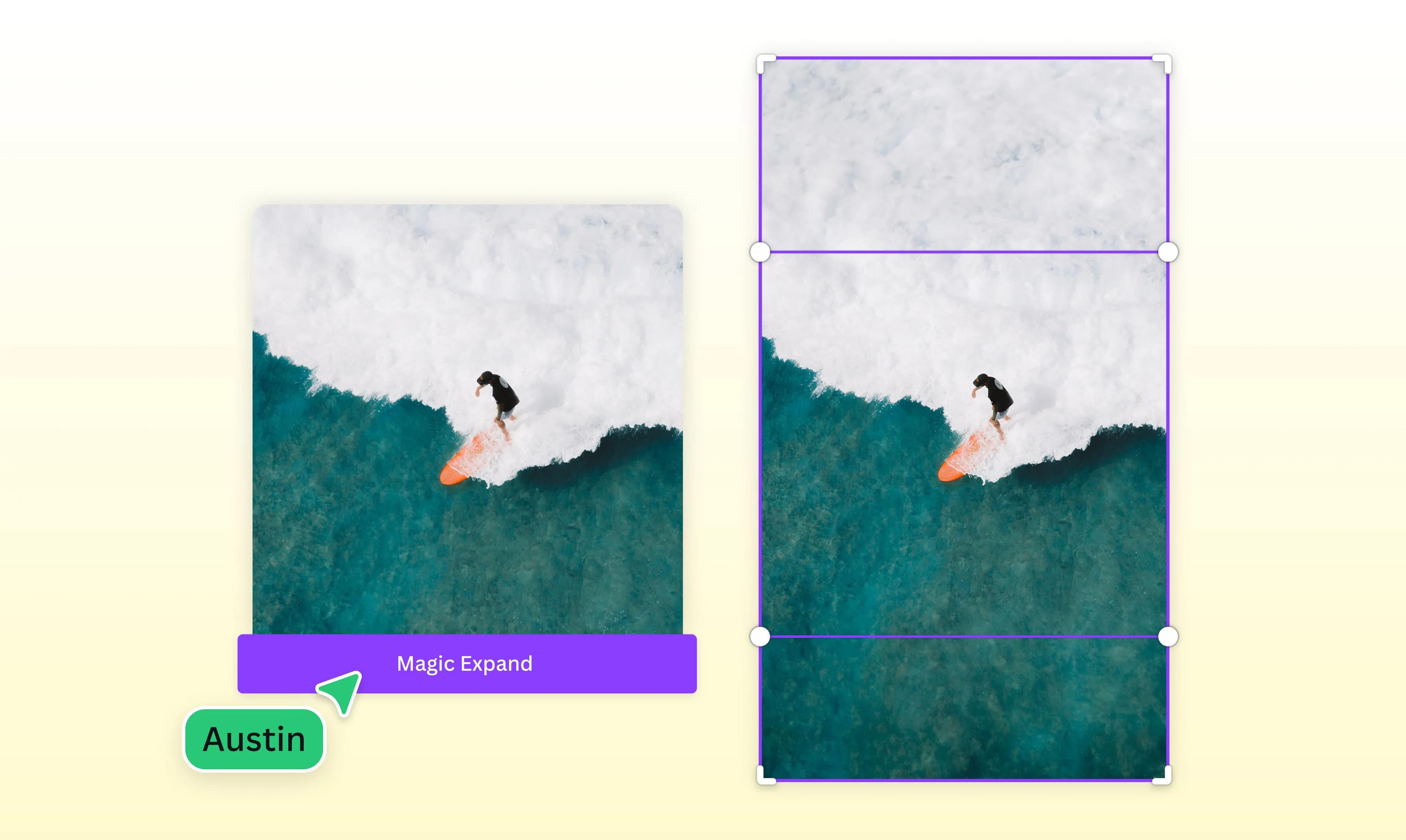
This simplicity is its biggest strength. However, because it prioritises ease of use, it does not offer the same level of fine control that professional tools do. Even so, for many businesses, speed and convenience matter more than pixel-perfect precision.
Pros:
- Extremely user-friendly
- Fast results for common formats
- Perfect for non-designers
Cons:
- Limited customisation
- Not ideal for complex visuals
6. Pixelcut (Uncrop)
Best for: E-commerce sellers and mobile-first product photography
Platform: Web, iOS, Android
Pricing: Free plan available. Pro plans typically start from around $8 to $10 a month.
Pixelcut is a mobile-first photo editor built specifically for product photography, and its Uncrop tool is one of the most widely used AI image extenders among online sellers. Rather than a general creative suite, it focuses on a handful of jobs sellers do every day: removing backgrounds, generating product scenes, and extending images to fit marketplace, social and advertising formats.
Because it is designed around speed on a phone, Pixelcut suits solo sellers and small teams who need to turn around a batch of listing photos quickly. It will not replace a full design suite for complex creative work, but for product-led image extension it is hard to beat on price and simplicity.
Pros:
- Purpose-built for product and e-commerce photography
- Fast, mobile-first workflow
- Competitively priced against similar tools
Cons:
- Narrower feature set than general creative platforms
- Less suited to artistic or highly complex compositions
7. Freepik AI Expand
Best for: Designers and marketers who already use Freepik for stock assets
Platform: Web
Pricing: Included within Freepik's subscription plans, which also cover stock photos, templates and other AI tools. Limited free usage is available.
Freepik has expanded from a stock content library into a broader AI creative suite, and its image expander lets users extend an image's canvas using text prompts for extra control over what appears in the new space. It also gives users a choice of underlying AI models for different styles and quality levels, including access to some of the same advanced image models used by dedicated AI labs.
This makes Freepik a practical option for teams who want image extension alongside stock photography, mockups and other design assets in a single subscription, rather than paying for a separate specialist tool.
Pros:
- Prompt-guided control over the extended area
- Choice of underlying AI models
- Bundled with Freepik's wider stock and design library
Cons:
- Best value only if you already use Freepik's other tools
- Less specialised than dedicated outpainting platforms
8. Fotor AI Expand
Best for: Beginners and quick edits
Platform: Web
Pricing: Free plan available. Paid plans typically start from under $10 a month.
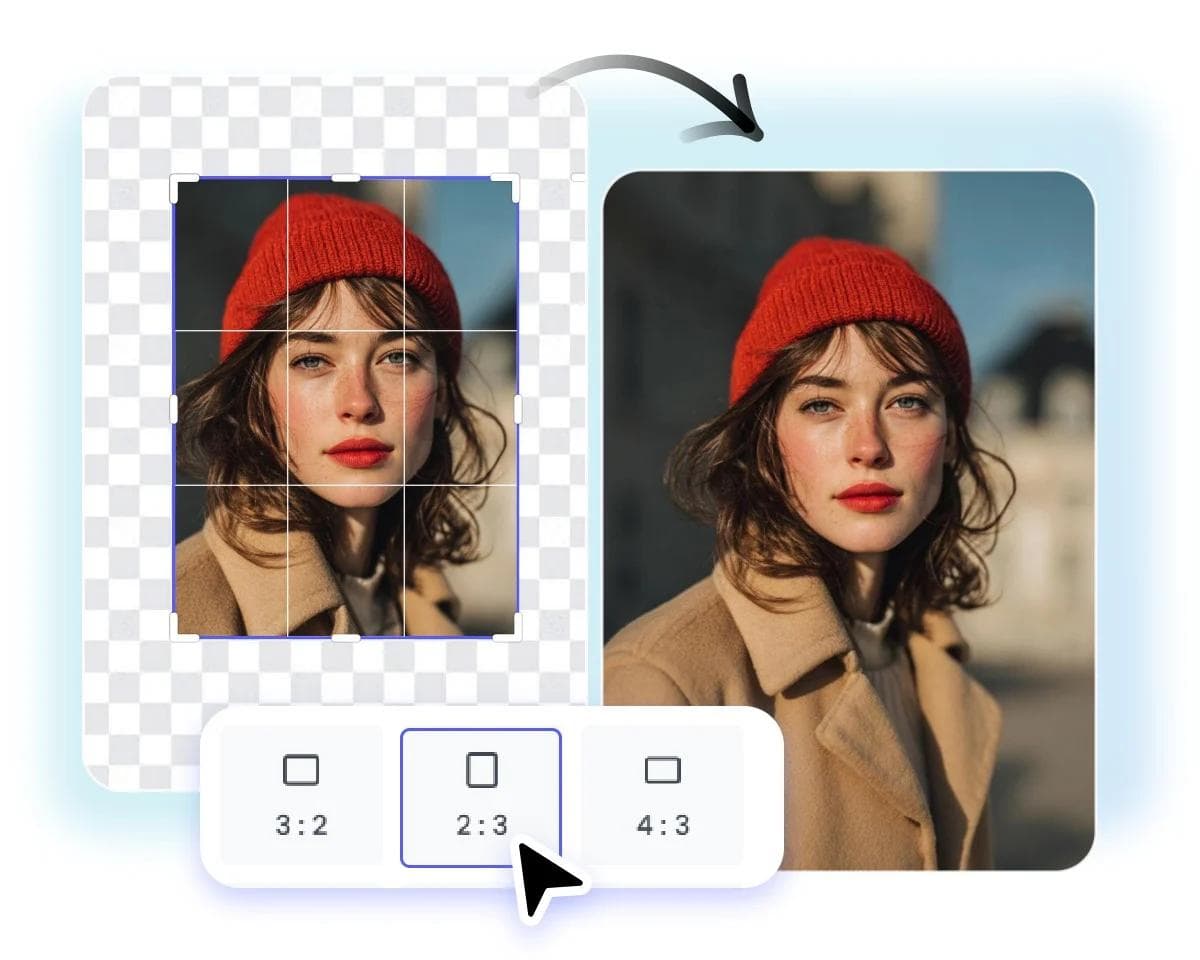
Fotor's AI Expand tool is designed to remove friction from the process. You upload an image, choose how you want to extend it, and the system generates the result automatically. This makes it a strong entry-level option for users who want quick improvements without learning new software.
That said, the trade-off is control. While Fotor is efficient, it is better suited to simple background extensions than to detailed, creative compositions.
Pros:
- Very simple workflow
- Fast results
- No advanced skills required
Cons:
- Fewer manual controls
- Best for basic use cases only
9. Getimg.AI
Best for: Creative teams needing flexibility
Platform: Web
Pricing: Free credits available to start. Paid plans are typically credit-based, from around $10 to $15 a month.
Getimg.AI offers a more flexible approach to image extension, combining outpainting and inpainting features with custom prompts. This means teams can guide the AI more precisely, rather than relying entirely on automatic decisions.
As a result, it is a strong choice for creative experimentation and branded visuals. However, because it offers more options, it can take slightly longer to master than simpler tools.
Pros:
- Greater creative control
- Good for branded and artistic visuals
- Supports custom prompts
Cons:
- Slightly steeper learning curve
- Not as one-click as simpler tools
10. ExtendImage.AI
Best for: Fast, no-frills image expansion
Platform: Web
Pricing: Free or low-cost, positioned as a simple utility rather than a full subscription platform.
ExtendImage.AI focuses on doing one thing well: expanding images quickly. It is a practical solution when you simply need more space around an image for a layout, without spending time on fine details.
Because of this focus, it is not designed for advanced creative work. Nevertheless, for fast-paced content production, it can be a very useful utility tool.
Pros:
- Very fast and simple
- Ideal for quick layout adjustments
- No complex setup
Cons:
- Limited features
- Not suitable for creative or detailed work
How to Choose the Best AI Image Extender for Your Needs
With so many capable tools available in 2026, choosing the best AI image extender is less about chasing features and more about matching the tool to your real business needs.
In practice, the right choice depends on your team's workflow, skill level, output volume and quality expectations. Below, we break this down into four clear scenarios to help you decide with confidence.
1. For Professional Results: Adobe Firefly, Nano Banana Pro and Getimg.AI
If your priority is visual quality, brand consistency and creative control, then professional-grade tools such as Adobe Firefly, Nano Banana Pro and Getimg.AI are the strongest options.
These platforms are designed for teams that care deeply about lighting, perspective, texture and composition, which is critical for campaigns, premium websites and high-impact advertising.
In real terms, this approach works best when:
- You are producing hero images, landing page visuals or campaign creatives
- You need results that can pass brand or client approval without heavy rework
- Your designers already work in tools like Photoshop or advanced creative suites
For example, a brand campaign image shot in portrait format can be extended into a wide billboard layout while preserving the scene's depth, shadows and colour grading. Instead of looking AI-stretched, the image feels as though it was always composed that way.
How to use these tools effectively:
- Start with high-quality source images for the best results
- Use guided prompts or selection tools to control where the image is extended
- Review outputs at 100% zoom to check for artefacts before final export
While these tools require more skill and time to master, the trade-off is clear: you gain precision, reliability and results that meet professional standards.
2. For Social and Rapid Content Creation: PicsArt, Canva, Photoroom and Pixelcut
On the other hand, if speed and volume matter more than fine-grained control, tools like PicsArt, Canva, Photoroom and Pixelcut are far more practical. These platforms are built for marketing teams, social media managers and content creators who need to adapt visuals quickly across multiple channels.
This is the right category if:
- You regularly resize images for Instagram, LinkedIn, TikTok, banners and ads
- You need quick turnarounds for campaigns or promotions
- Your team includes non-designers who still need to produce visual content
For instance, you might take one square product image and instantly generate:
- A vertical version for Stories
- A wide version for a website banner
- A landscape version for ads
All of this can be done without manually redesigning the layout or cropping out important elements.
Best practice tips:
- Choose preset formats that match your platforms (social, display, web)
- Always do a quick visual check to ensure the AI hasn't added distracting elements
- Keep your brand colours and visual style consistent across outputs
In short, these tools help you move faster, publish more consistently, and reduce dependency on full design workflows.
If you are building a full campaign around these visuals, pairing your image workflow with the best AI social media post generators for captions, or the best AI ad generators for finished ad creative, can help you move from raw asset to published content even faster.
3. For Simple or Free Image Fixes: ExtendImage.AI, Fotor and PicSo
Sometimes, you don't need a full creative suite, you just need more space around an image so it fits a layout. That is exactly where simpler tools like ExtendImage.AI, Fotor and PicSo shine.
These tools are ideal when:
- You are adjusting blog images, thumbnails or basic web visuals
- You want quick results with minimal setup
- You don't need advanced creative control or complex edits
For example, if a blog header image is slightly too narrow for your website layout, you can use one of these tools to extend the background naturally rather than stretching or cropping the image.
A simple workflow might look like this:
- Upload the image
- Select the new size or canvas area
- Let the AI fill in the missing space
- Download and use it immediately
Because these tools prioritise simplicity, they are perfect for small teams, solo marketers or quick fixes during busy production cycles. However, they are best reserved for straightforward tasks rather than high-visibility brand assets.
4. For Development and Automation: Hugging Face Diffusers
Finally, if you are building products, platforms or automated content pipelines, Hugging Face Diffusers offers a very different kind of value. Rather than being a design tool, it is a developer-focused solution that allows you to integrate AI image extension directly into your systems.
This approach makes sense when:
- You want to automate image resizing or expansion at scale
- You are building a SaaS product, CMS or content platform
- You need programmatic control over how images are generated and extended
For example, an e-commerce platform could automatically extend product images into multiple formats as soon as a seller uploads them, without any manual design work involved.
Key considerations before choosing this route:
- You will need technical expertise to implement and maintain it
- You should define clear rules for image quality and output formats
- You may still want human review for high-impact visuals
In return, you gain scalability, consistency and deep integration into your digital infrastructure, something no one-click design tool can offer.
Things to Watch Out For With AI-Generated Image Extensions
AI image extenders are powerful, but it is worth understanding their limits before you rely on them for high-stakes visuals.
- The new areas are predictions, not recovered pixels. The AI is generating a plausible continuation of your scene, not restoring lost information, so it can occasionally invent objects, misjudge anatomy, or create small inconsistencies in reflections, shadows or architecture.
- Always review output at full size before publishing. What looks fine as a thumbnail can show visible seams or artefacts once it is used at full size on a website or in print.
- Some free tools add a watermark. If you need clean, watermark-free output for client or commercial work, check this before you commit to a workflow.
- Keep your original files. For editorial, evidentiary, product accuracy or historical images, always retain the unedited original alongside any AI-extended version.
- Check the licence for commercial use. Terms vary by platform, so confirm you are clear to use AI-extended images in paid campaigns, packaging or resale before you publish.
Tips for Getting the Best Results from AI Outpainting
A few habits make a noticeable difference to the quality of your results, regardless of which tool you use:
- Start with a high-resolution source image. The AI has more detail to work from, which improves the quality of the generated area.
- Extend in stages for large changes. If you need to more than double an image's size, run the extension a couple of times in smaller steps rather than one large jump. This gives the AI more context at each stage and produces a more natural result.
- Guide the AI with prompts where available. Tools that support prompts let you specify what should appear in the new space, rather than leaving it entirely to the AI's best guess.
- Match your brand's visual style. Keep colour grading, lighting and composition consistent across extended images so they sit naturally alongside your other visual content.
- Do a final check at 100% zoom. This is the fastest way to catch artefacts before an image goes live.
Transform Your Visual Content with the Right AI Tools
AI image extenders are no longer just creative tools, they are a competitive advantage. When used strategically, they help you move faster, scale content production, and deliver consistent visual experiences across every digital touchpoint.
At Saigon Digital, we help ambitious brands turn AI and automation into measurable results, from high-performance websites to SEO and AI-powered marketing workflows. If you want to implement the best AI image extender tools in a way that actually supports your business goals, our team is here to help.
Let’s talk about how AI can upgrade your visual content strategy.
Get in touch with Saigon Digital today and start building smarter, faster, and more scalable digital experiences.
Frequently Asked Questions About AI Image Extenders
1. What is an AI image extender?
An AI image extender is a tool that uses generative AI to add realistic new content beyond an image's original borders, commonly known as outpainting or generative expand. It differs from simply stretching or cropping an image, because the AI generates new, context-aware detail rather than distorting what is already there.
2. What is the difference between outpainting and generative expand?
Outpainting is the general technical term for extending an image beyond its original frame. Generative expand is Adobe's specific name for this feature inside Photoshop and Firefly. Different platforms use different names for essentially the same underlying capability.
3. Is there a free AI image extender?
Yes. Several tools on this list, including Fotor, Photoroom, PicsArt, Pixelcut, PicSo and Google's Nano Banana Pro through the Gemini app, offer a free plan or free credits, though free tiers often come with usage limits, lower resolution, or a visible watermark.
4. Which AI image extender is best for e-commerce product photos?
Photoroom and Pixelcut are both built specifically for product photography and e-commerce workflows, with fast, mobile-friendly tools for turning one product shot into multiple marketplace and advertising formats.
5. Can AI-extended images be used commercially?
In most cases, yes, but the exact terms depend on the platform and your subscription plan. Always check a tool's licence and commercial use terms before using AI-extended images in paid campaigns, packaging or resale.
6. How much do AI image extenders cost?
Pricing ranges from free and open source options, such as Hugging Face Diffusers, through to subscriptions of around $10 to $25 a month for most mainstream tools, up to $70 a month or more for full professional suites like Adobe Creative Cloud Pro.
7. Can AI image extension replace a professional photoshoot?
Not entirely. AI image extension is excellent for adapting and reformatting visuals you already have, but it works from predictions rather than real information. For brand-critical campaigns or situations where accuracy matters, such as product packaging or editorial photography, a professional shoot or human review is still the safer choice.